Create a Linux Router/Firewall with Slicer
In this example, we'll turn a regular PC into a router/firewall with standard Linux networking daemons such as dnsmasq and iptables.
Why use a regular Linux VM over a product like pfSense, or OPNsense?
Whether it's based upon FreeBSD or Linux, these products are often extremely bloated, often closed source, and require a lot of resources to run. It's hard to know where to start when you need to customise these products to your own needs, and they often bundle far more than you need for a router/firewall.
Instead, we'll use a microVM that's easy to create from scratch, and can be customised as much as you need. You can then add in additional daemons or services as required like a VPN uplink, Inlets tunnels, or something like PiHole for ad blocking.
Most importantly, you'll be in control, you'll know exactly what is and what is not running in your appliance, and how to troubleshoot it or customise it - an LLM agent can help you with that if you're not used to Linux networking.
And why Slicer?
Well instead of having to flash an ISO directly to your main drive, you can run as many microVMs as you want, each performing a different task or role. One common complaint with off the shelf router/firewall products is their poor support for Linux containers. With Slicer, you can simply run an extra microVM, you're not locked into one OS or product for the whole machine.
Network Topology
                    ┌─────────────────────────────────┐
                    │           Slicer Host           │
                    │                                 │
                    │  ┌──────────────────────────┐   │
                    │  │  microVM Router/Firewall │   │
                    │  │                          │   │
                    │  │  eth0: 192.168.130.2/24  │   │
                    │  │  ──────────────────────  │   │
                    │  │                          │   │
                    │  │  ens7: 10.88.0.1/24      │   │
                    │  │  (PCI Passthrough/VFIO)  │   │
                    │  └──────────────────────────┘   │
                    │           │                     │
                    │           │ PCI Passthrough     │
                    │           │ (VFIO)              │
                    └───────────┼─────────────────────┘
                                │
                    ┌───────────┴───────────┐
                    │                       │
                    │                       │
         ┌──────────▼───────────┐ ┌─────────▼────────┐
         │       LAN1           │ │       LAN2       │
         │  (Main Network)      │ │  (Isolated)      │
         │  192.168.130.0/24    │ │  10.88.0.0/24    │
         │                      │ │                  │
         │  ┌────────────────┐  │ │  ┌─────────────┐ │
         │  │  Other Devices │  │ │  │ Raspberry Pi│ │
         │  │  (LAN1)        │  │ │  │ (LAN2)      │ │
         │  └────────────────┘  │ │  └─────────────┘ │
         │                      │ │                  │
         │  Internet Gateway    │ │  DHCP/DNS        │
         │  Router              │ │  via dnsmasq     │
         └──────────────────────┘ └──────────────────┘
The microVM router has two network interfaces:
- eth0: Connected to LAN1 (192.168.130.0/24) via bridge networking
- ens7: Connected to LAN2 (10.88.0.0/24) via PCI passthrough (VFIO)
All traffic from LAN2 must pass through the microVM router to reach LAN1 or the Internet, providing physical Layer 1 separation between the networks.
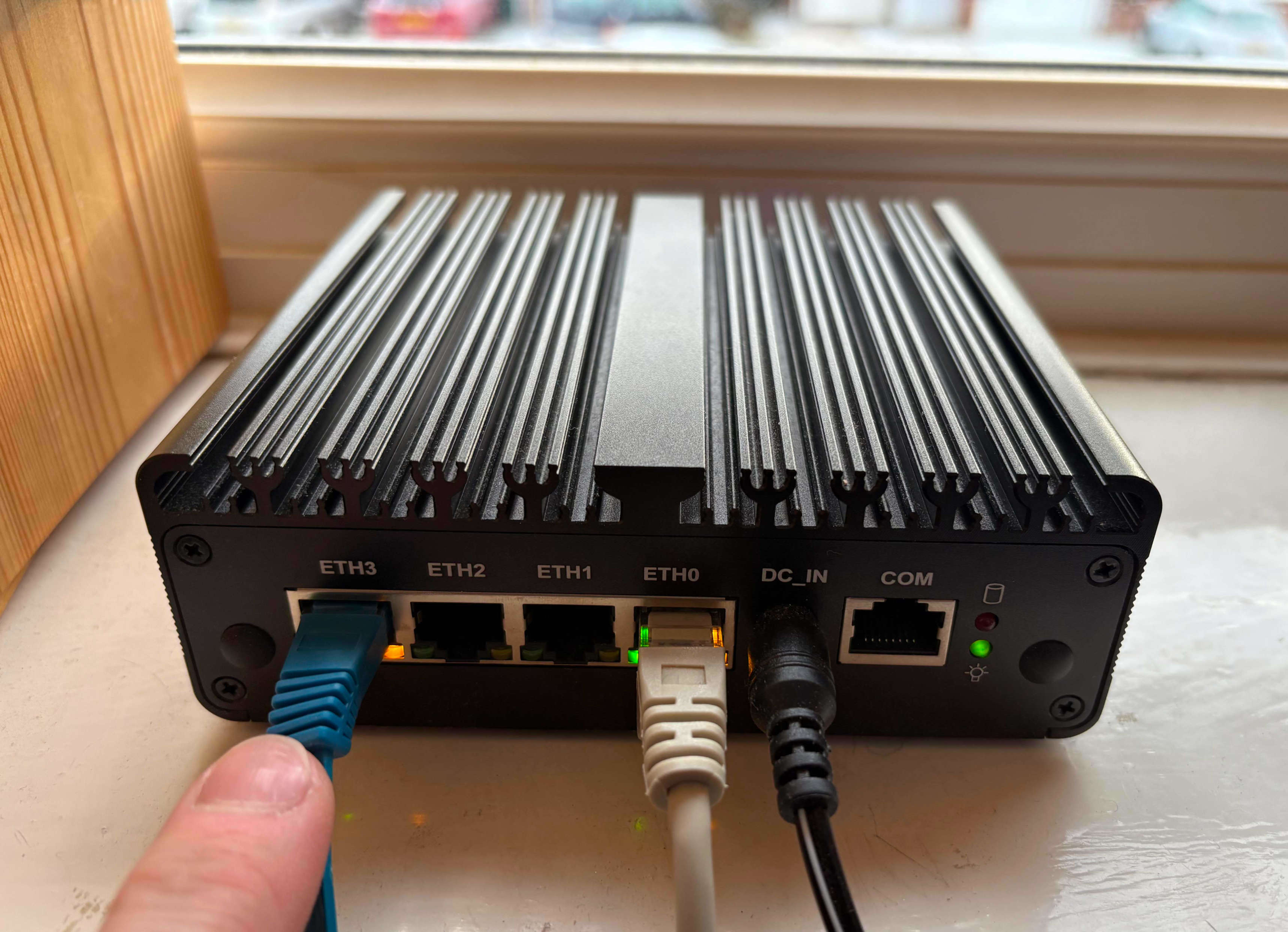
N100 mini PC routing/firewalling a separate Internal network
You will have physical L1 (OSI) separation between the main LAN1 and a separate LAN2.
The LAN1 in this case will be your main network, which is plugged directly into the Slicer host.
The LAN2 will be a separate network plugged into its own switch, WiFi access point, or an Ethernet port on another device.
For this example, we'll use the microVM to create an isolated physical network for a Raspberry Pi, with a separate IP range than the main network LAN1.
Prerequisites
Whilst I'm using a Raspberry Pi for the LAN2 network, you can use any device that supports standard Linux networking daemons.
Bind a PCI network adapter to VFIO
You'll need to follow the instructions on the PCI Passthrough page to bind a PCI network adapter to VFIO.
You'll be able to identify which network adapters are available, and are part of their own IOMMU group.
In the case of the N100 mini PC being used here, the PCI address is 0000:04:00.0, which can also be written in short form as 04:00.0.
Take note of this address and use it in the config file in the next step.
Set up the microVM
Create a new Slicer config file, and add in the PCI address of the network adapter you bound to VFIO:
config:
  pci:
    router-1: ["0000:04:00.0"]

  host_groups:
    - name: router
      userdata_file: ./userdata.sh
      storage: image
      storage_size: 25G
      count: 1
      vcpu: 2
      ram_gb: 4
      network:
        bridge: brrouter0
        tap_prefix: router
        gateway: 192.168.130.1/24
  image: "ghcr.io/openfaasltd/slicer-systemd-ch:x86_64-latest"
  hypervisor: cloud-hypervisor

  api:
    port: 8080
    bind_address: "127.0.0.1"
    auth:
      enabled: true
  ssh:
    port: 0
This configures Slicer to create a single microVM with 2 vCPUs and 4GB of RAM.
We now need to find out the stable name of the network adapter when it's passed through via VFIO into the microVM.
Create a userdata file for the initial boot which will log the network adapters to the serial console log file:
cat >> userdata.sh << EOF
#!/bin/bash

ip link show

lspci

EOF
Then, boot up the microVM, then check the logs for the stable name of the network adapter:
sudo slicer up ./router.yaml
Once booted, review the log file for the microVM, the userdata script will output to the console:
cat /var/log/slicer/router-1.txt
The following output came from the N100 being used in this example:
1: lo: <LOOPBACK,UP,LOWER_UP> mtu 65536 qdisc noqueue state UNKNOWN group default qlen 1000
    link/loopback 00:00:00:00:00:00 brd 00:00:00:00:00:00
    inet 127.0.0.1/8 scope host lo
       valid_lft forever preferred_lft forever
    inet6 ::1/128 scope host
       valid_lft forever preferred_lft forever
2: eth0: <BROADCAST,MULTICAST,UP,LOWER_UP> mtu 1500 qdisc pfifo_fast state UP group default qlen 1000
    link/ether 2e:31:2a:ff:7d:45 brd ff:ff:ff:ff:ff:ff
    altname enp0s4
    altname ens4
    inet 192.168.130.2/24 brd 192.168.130.255 scope global eth0
       valid_lft forever preferred_lft forever
    inet6 fe80::2c31:2aff:feff:7d45/64 scope link
       valid_lft forever preferred_lft forever
3: ens7: <BROADCAST,MULTICAST,UP,LOWER_UP> mtu 1500 qdisc mq state UP group default qlen 1000
    link/ether 60:be:b4:1e:19:63 brd ff:ff:ff:ff:ff:ff
    altname enp0s7
    inet 10.88.0.1/24 scope global ens7
       valid_lft forever preferred_lft forever
    inet6 fe80::62be:b4ff:fe1e:1963/64 scope link
       valid_lft forever preferred_lft forever
lo and eth0 are standard and available for all microVMs, so look a different one i.e. ens7 in this case.
Hit Control-C to stop the microVM, then run sudo rm -rf *.img to remove the storage image.
Create a userdata script to configure the router daemons.
Edit ens7 and enp0s7 to match the values show in the output of the ip addr show command run above.
userdata.sh
#!/usr/bin/env bash
set -euo pipefail
log(){ echo "[router-setup] $*"; }

WAN_IF="eth0"
LAN_IF="ens7"

LAN_IP="10.88.0.1"
LAN_CIDR="${LAN_IP}/24"
LAN_NET="10.88.0.0/24"

DHCP_START="10.88.0.50"
DHCP_END="10.88.0.200"

UP_DNS1="1.1.1.1"
UP_DNS2="8.8.8.8"

export DEBIAN_FRONTEND=noninteractive

if ! ip link show "${LAN_IF}" >/dev/null 2>&1; then
  log "ERROR: ${LAN_IF} not found. Run: ip -br link"
  ip -br link || true
  exit 1
fi

log "Installing packages"
apt-get update -y
echo iptables-persistent iptables-persistent/autosave_v4 boolean true | debconf-set-selections || true
echo iptables-persistent iptables-persistent/autosave_v6 boolean true | debconf-set-selections || true
apt-get install -y dnsmasq iptables iptables-persistent nmap

log "Configuring systemd-networkd for ${LAN_IF}=${LAN_CIDR} (eth0 untouched)"
mkdir -p /etc/systemd/network
cat >/etc/systemd/network/10-lan-${LAN_IF}.network <<EOF
[Match]
Name=${LAN_IF}

[Link]
RequiredForOnline=no

[Network]
Address=${LAN_CIDR}
ConfigureWithoutCarrier=yes
IPv6AcceptRA=no
EOF

systemctl enable systemd-networkd
systemctl restart systemd-networkd
networkctl reconfigure "${LAN_IF}" || true
ip link set "${LAN_IF}" up || true

log "Enable IPv4 forwarding (set only what we need; avoid sysctl --system noise)"
cat >/etc/sysctl.d/99-router.conf <<EOF
net.ipv4.ip_forward=1
EOF
sysctl -w net.ipv4.ip_forward=1 >/dev/null || true

log "Configuring dnsmasq (LAN only, resilient bind)"
mkdir -p /etc/dnsmasq.d
cat >/etc/dnsmasq.d/pi-lan.conf <<EOF
# Only serve on LAN
interface=${LAN_IF}
except-interface=${WAN_IF}
except-interface=lo

# Resilient bind: don't fail if IP isn't present yet; rebind when it appears
bind-dynamic

# DHCP scope
dhcp-range=${DHCP_START},${DHCP_END},255.255.255.0,12h
dhcp-option=option:router,${LAN_IP}
dhcp-option=option:dns-server,${LAN_IP}

# DNS forwarding upstream
no-resolv
server=${UP_DNS1}
server=${UP_DNS2}

# Debug
log-dhcp
log-queries
EOF

# Don't rely on apt auto-start (policy-rc.d may block it)
systemctl enable dnsmasq || true

log "Writing router defaults"
cat >/etc/default/router-apply <<EOF
WAN_IF=${WAN_IF}
LAN_IF=${LAN_IF}
LAN_NET=${LAN_NET}
EOF
chmod 0644 /etc/default/router-apply

log "Writing router runtime apply script (runs every boot)"
cat >/usr/local/sbin/router-apply.sh <<'EOF'
#!/usr/bin/env bash
set -euo pipefail
log(){ echo "[router-apply] $*"; }

# shellcheck disable=SC1091
source /etc/default/router-apply

: "${WAN_IF:?missing WAN_IF}"
: "${LAN_IF:?missing LAN_IF}"
: "${LAN_NET:?missing LAN_NET}"

ip link set "${LAN_IF}" up || true

iptables -C INPUT -i "${LAN_IF}" -p udp --dport 67 -j ACCEPT 2>/dev/null || \
  iptables -A INPUT -i "${LAN_IF}" -p udp --dport 67 -j ACCEPT
iptables -C INPUT -i "${LAN_IF}" -p udp --dport 53 -j ACCEPT 2>/dev/null || \
  iptables -A INPUT -i "${LAN_IF}" -p udp --dport 53 -j ACCEPT
iptables -C INPUT -i "${LAN_IF}" -p tcp --dport 53 -j ACCEPT 2>/dev/null || \
  iptables -A INPUT -i "${LAN_IF}" -p tcp --dport 53 -j ACCEPT

iptables -C FORWARD -i "${LAN_IF}" -o "${WAN_IF}" -s "${LAN_NET}" -j ACCEPT 2>/dev/null || \
  iptables -A FORWARD -i "${LAN_IF}" -o "${WAN_IF}" -s "${LAN_NET}" -j ACCEPT
iptables -C FORWARD -i "${WAN_IF}" -o "${LAN_IF}" -d "${LAN_NET}" -m conntrack --ctstate ESTABLISHED,RELATED -j ACCEPT 2>/dev/null || \
  iptables -A FORWARD -i "${WAN_IF}" -o "${LAN_IF}" -d "${LAN_NET}" -m conntrack --ctstate ESTABLISHED,RELATED -j ACCEPT

iptables -t nat -C POSTROUTING -o "${WAN_IF}" -s "${LAN_NET}" -j MASQUERADE 2>/dev/null || \
  iptables -t nat -A POSTROUTING -o "${WAN_IF}" -s "${LAN_NET}" -j MASQUERADE

iptables-save > /etc/iptables/rules.v4
ip6tables-save > /etc/iptables/rules.v6

# Start/restart dnsmasq now that interface/address is ready
systemctl restart dnsmasq || true

log "Applied."
EOF
chmod +x /usr/local/sbin/router-apply.sh

log "Creating systemd oneshot service"
cat >/etc/systemd/system/router-apply.service <<'EOF'
[Unit]
Description=Apply router LAN + firewall config
After=systemd-networkd.service
Wants=systemd-networkd.service

[Service]
Type=oneshot
ExecStart=/usr/local/sbin/router-apply.sh
RemainAfterExit=yes

[Install]
WantedBy=multi-user.target
EOF

systemctl daemon-reload
systemctl enable router-apply.service
systemctl enable netfilter-persistent || true

# Run once now
/usr/local/sbin/router-apply.sh

log "Done."
ip -br addr || true
iptables -L -v -n || true
systemctl --no-pager --full status dnsmasq || true
Start up the microVM:
sudo slicer up ./router.yaml
You can then connect and start viewing the logs from the DHCP/DNS server:
sudo slicer vm shell --uid 1000 router-1

# Then within the microVM:
sudo journalctl -u dnsmasq --since today -f
Configure a Raspberry Pi to run on LAN2
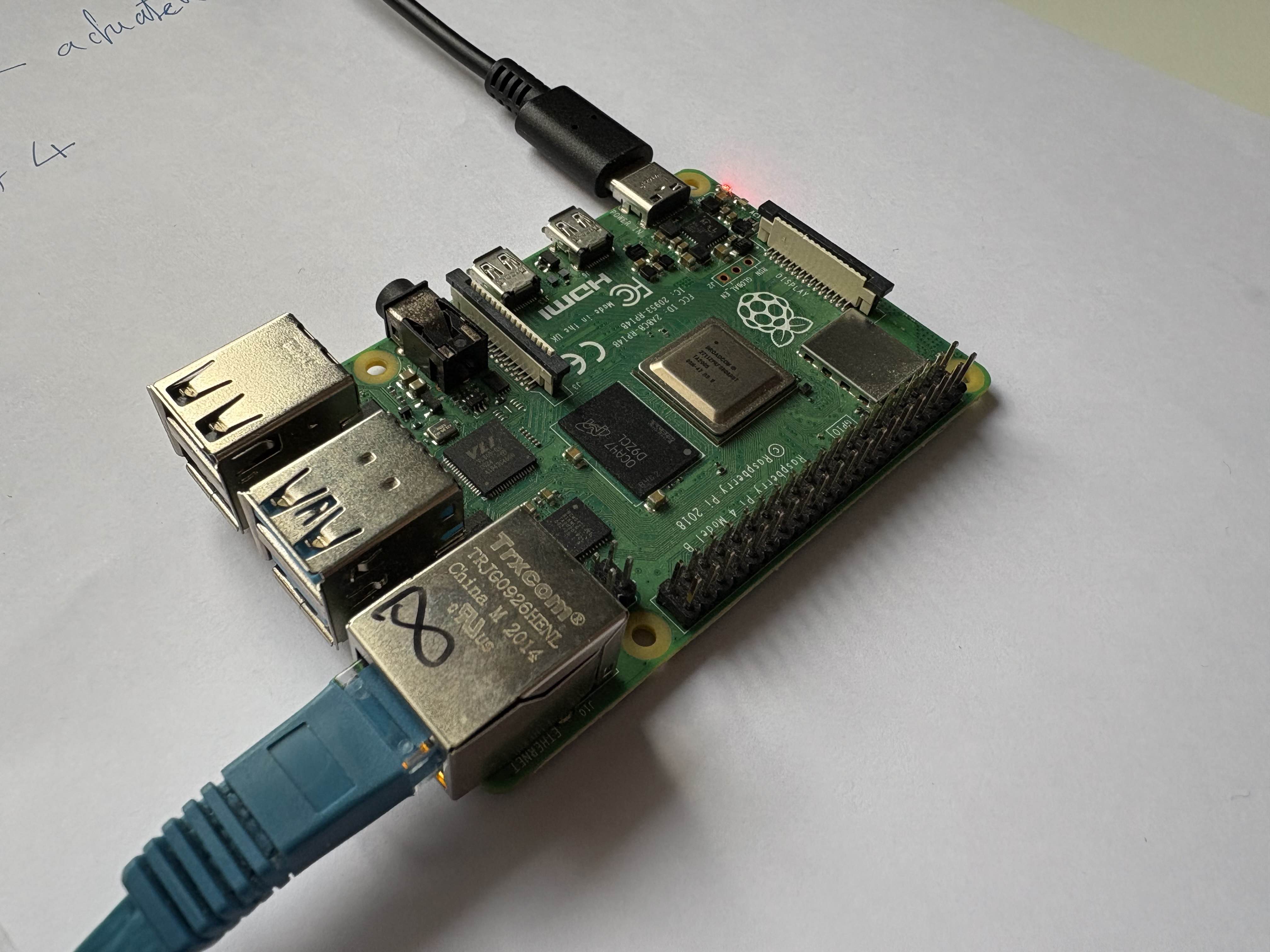
Raspberry Pi plugged directly into the N100
Now, we need to configure a Raspberry Pi to run on LAN2.
First, flash the standard 64-bit Raspberry Pi OS Lite (Trixie) image to a microSD card.
i.e. replace sdX with the device name of the microSD card found via lsblk:
sudo dd if=/path/to/raspberrypi-os-lite-64-trixie.img of=/dev/sdX bs=4M status=progress && sync
Next, mount the microSD card so that you can supply config via the boot partition.
We'll be using userdata, and a custom username and password.
Save provision.sh:
#!/usr/bin/env bash
set -euo pipefail

BOOT=/mnt/boot
HOSTNAME=slicer-client-1
USERNAME=alex

# 1) Generate a strong random password (URL-safe)
PLAINTEXT_PASS="$(openssl rand -base64 18)"

# 2) Hash it for cloud-init (SHA-512)
HASHED_PASS="$(openssl passwd -6 "$PLAINTEXT_PASS")"

# 3) Write user-data
cat <<EOF | sudo tee "$BOOT/user-data" >/dev/null
#cloud-config

hostname: $HOSTNAME
manage_etc_hosts: true

users:
  - name: $USERNAME
    gecos: $USERNAME
    groups: [sudo]
    sudo: ALL=(ALL) NOPASSWD:ALL
    shell: /bin/bash
    lock_passwd: false
    passwd: "$HASHED_PASS"

ssh:
  install-server: true
  allow-pw: true

disable_root: true

package_update: false
package_upgrade: false

runcmd:
  - systemctl enable ssh
  - systemctl start ssh
EOF

# 4) Write network-config
cat <<EOF | sudo tee "$BOOT/network-config" >/dev/null
version: 2
ethernets:
  eth0:
    dhcp4: true
    dhcp6: false
EOF

# 5) Write meta-data
cat <<EOF | sudo tee "$BOOT/meta-data" >/dev/null
instance-id: $HOSTNAME
local-hostname: $HOSTNAME
EOF

# 6) Output credentials (your copy)
echo
echo "======================================"
echo "  Raspberry Pi credentials generated"
echo "======================================"
echo "Host:      $HOSTNAME"
echo "User:      $USERNAME"
echo "Password:  $PLAINTEXT_PASS"
echo "======================================"
echo
Mount the SD card's first partition to /mnt/boot, then run the script:
sudo mount /dev/sdX1 /mnt/boot
sudo ./provision.sh
sudo umount /mnt/boot
Next, make sure the Raspberry Pi is plugged into the network interface on the Slicer host.
Access the Raspberry Pi
From the Slicer host, open a shell into the microVM:
sudo slicer vm shell --uid 1000 router-1
You can either find the IP given out from the journalctl command we ran earlier, or use nmap to discover the Raspberry Pi on the network:
nmap -sP 10.88.0.0/24
You should see the Raspberry Pi's IP address in the output.
Starting Nmap 7.80 ( https://nmap.org ) at 2026-01-06 10:34 UTC
Nmap scan report for 10.88.0.1
Host is up (0.00041s latency).
Nmap scan report for 10.88.0.67
Host is up (0.00068s latency).
Nmap done: 256 IP addresses (2 hosts up) scanned in 2.32 seconds
You can then connect to the Raspberry Pi over SSH using the credentials from earlier:
ssh $USERNAME@10.88.0.1
On the Raspberry Pi, you'll be able to ping the microVM's IP address, and access the Internet via the router/firewall microVM.
ubuntu@router-1:~$ ping -c1 10.88.0.1
PING 10.88.0.1 (10.88.0.1) 56(84) bytes of data.
64 bytes from 10.88.0.1: icmp_seq=1 ttl=64 time=0.073 ms

--- 10.88.0.1 ping statistics ---
1 packets transmitted, 1 received, 0% packet loss, time 0ms
rtt min/avg/max/mdev = 0.073/0.073/0.073/0.000 ms
ubuntu@router-1:~$ ping -c1 8.8.8.8
PING 8.8.8.8 (8.8.8.8) 56(84) bytes of data.
64 bytes from 8.8.8.8: icmp_seq=1 ttl=118 time=7.51 ms

--- 8.8.8.8 ping statistics ---
1 packets transmitted, 1 received, 0% packet loss, time 0ms
rtt min/avg/max/mdev = 7.507/7.507/7.507/0.000 ms
ubuntu@router-1:~$ curl google.com
<HTML><HEAD><meta http-equiv="content-type" content="text/html;charset=utf-8">
<TITLE>301 Moved</TITLE></HEAD><BODY>
<H1>301 Moved</H1>
The document has moved
<A HREF="http://www.google.com/">here</A>.
</BODY></HTML>
ubuntu@router-1:~$
Block access to your main network
By using iptables, you can block access to your main network (LAN1) from LAN2. This creates a Demilitarized Zone (DMZ) where devices on LAN2 can access the Internet and the router itself, but not the rest of your main network.
For example, if your main network is 192.168.1.0/24 (different from the router's LAN1 interface subnet 192.168.130.0/24), you can firewall it off so that LAN2 only has access to the Internet and the microVM router.
Add this iptables rule to your userdata script before the existing FORWARD ACCEPT rules. Since iptables evaluates rules in order, the DROP rule must come before the ACCEPT rule:
# Block access to LAN1 network (192.168.1.0/24) from LAN2
# IMPORTANT: This must be inserted BEFORE the existing ACCEPT rules
# The -I flag inserts at position 1 (beginning of chain), so it's evaluated first
iptables -I FORWARD -i "${LAN_IF}" -d 192.168.1.0/24 -j DROP
Here's what the full table ends up looking like on the microVM end:
root@router-1:~# iptables -L -n -v
Chain INPUT (policy ACCEPT 0 packets, 0 bytes)
 pkts bytes target     prot opt in     out     source               destination
    2   654 ACCEPT     udp  --  ens7   *       0.0.0.0/0            0.0.0.0/0            udp dpt:67
    2   134 ACCEPT     udp  --  ens7   *       0.0.0.0/0            0.0.0.0/0            udp dpt:53
    0     0 ACCEPT     tcp  --  ens7   *       0.0.0.0/0            0.0.0.0/0            tcp dpt:53

Chain FORWARD (policy ACCEPT 0 packets, 0 bytes)
 pkts bytes target     prot opt in     out     source               destination
    0     0 DROP       all  --  ens7   *       0.0.0.0/0            192.168.1.0/24
    8   608 ACCEPT     all  --  ens7   eth0    10.88.0.0/24         0.0.0.0/0
    8   608 ACCEPT     all  --  eth0   ens7    0.0.0.0/0            10.88.0.0/24         ctstate RELATED,ESTABLISHED

Chain OUTPUT (policy ACCEPT 0 packets, 0 bytes)
 pkts bytes target     prot opt in     out     source               destination
root@router-1:~#
Place this rule in your userdata script before the existing FORWARD rules (around line 269-274). The -I flag inserts the rule at the beginning of the FORWARD chain, ensuring it's evaluated before the general ACCEPT rule that allows all LAN2 -> LAN1 traffic.
The existing rules already handle:
- Access to the router itself (INPUT rules allow DNS/DHCP on ${LAN_IF})
- Established connections back from Internet (the existing FORWARD rule with ESTABLISHED,RELATED)
With this rule in place, devices on LAN2 can:
- Access the Internet (via NAT masquerade through ${WAN_IF} which connects to LAN1)
- Access the router/firewall microVM itself (10.88.0.1) for DNS and DHCP
- Not access any devices on LAN1 (192.168.1.0/24)
This setup is ideal for running servers, CI runners, and other services exposed to the Internet through tunnels such as Inlets.
Wrapping up
You've now created a lightweight Linux router/firewall which physically isolates LAN2 from LAN1.
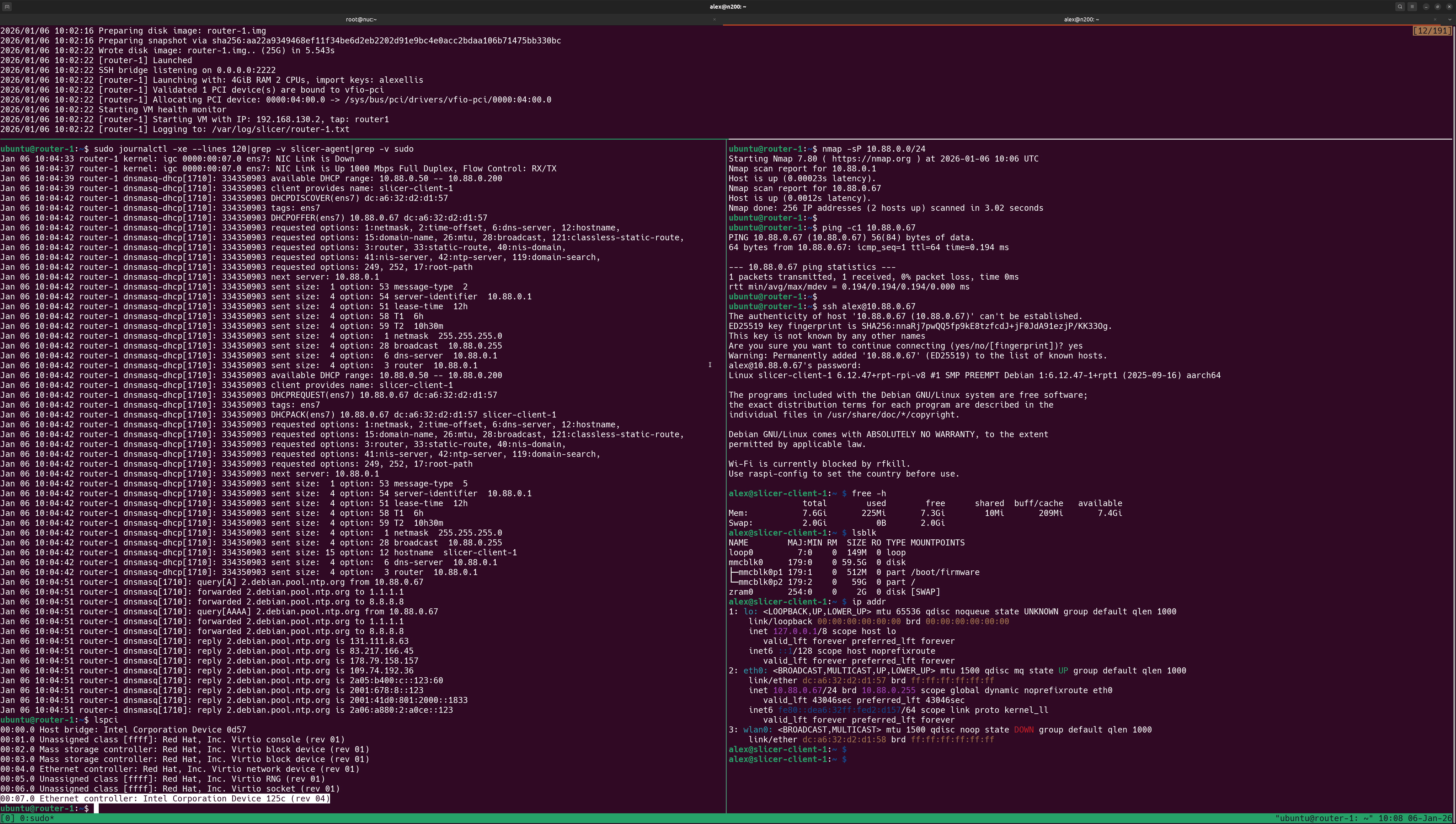
Raspberry Pi accessing the Internet via the router/firewall microVM.
In the screenshot, the top pane shows the PCI device being passed through to the microVM. The left pane shows the output of the Linux daemons providing IP addresses via DHCP and DNS. The right pane shows the Raspberry Pi being able to access the Internet via the new LAN2 IP range.
LAN2 has its own IP range: 10.88.0.0/24 and all devices must pass through the microVM to access the Internet or LAN1.
See the Block access to your main network section above for instructions on how to firewall off your main network from LAN2.